
Table Editor
Markdown tables tend to get rather unwieldy due to the many characters involved and the fact that pipe tables do not support multiple lines per cell. Take for instance the following example:
| # | Name              | Description                                                                                                                                                                     | Price     | Quantity |
|--:|-------------------|---------------------------------------------------------------------------------------------------------------------------------------------------------------------------------|-----------|----------|
| 1 | Sonic Screwdriver | A device for all purposes. It replaces all of your current tools to account for a multi-dimensional journey through space and time.                                             | $99.99    | 1        |
| 2 | E-11 Rifle        | Trusted by imperial troops, this rifle is the least accurate, but still most used weapon in the Galaxy.                                                                         | $329.95   | 2.000    |
| 3 | Towel             | We all know that you always should bring a towel to any intergalactic journey. This multi-purpose towel is the ideal companion in case your planet is about to be exterminated. | $12.30    | 157      |
| 4 | Your Mom          | Are you in an argument with a philosopher? Try this Freudian-tested kill-all-argument!                                                                                          | priceless | 1        |
In Zettlr, it would look like the following:
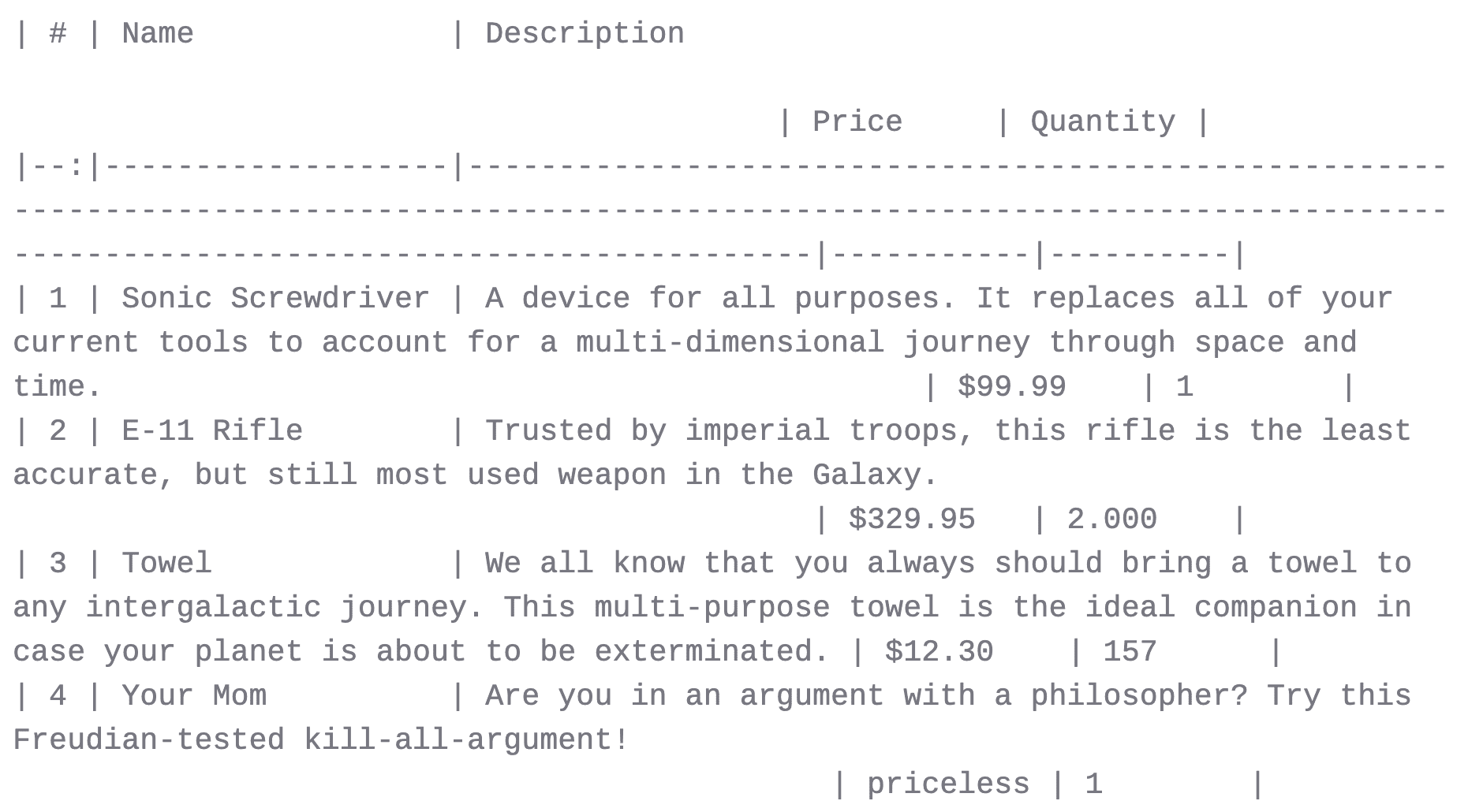
Even though the table cells are each aligned to fit the total width of each column, it is difficult to work with such a table.
Tip
To learn how to manually insert a table and the supported Syntax for adding tables, read the table syntax documentation.
The Table Editor
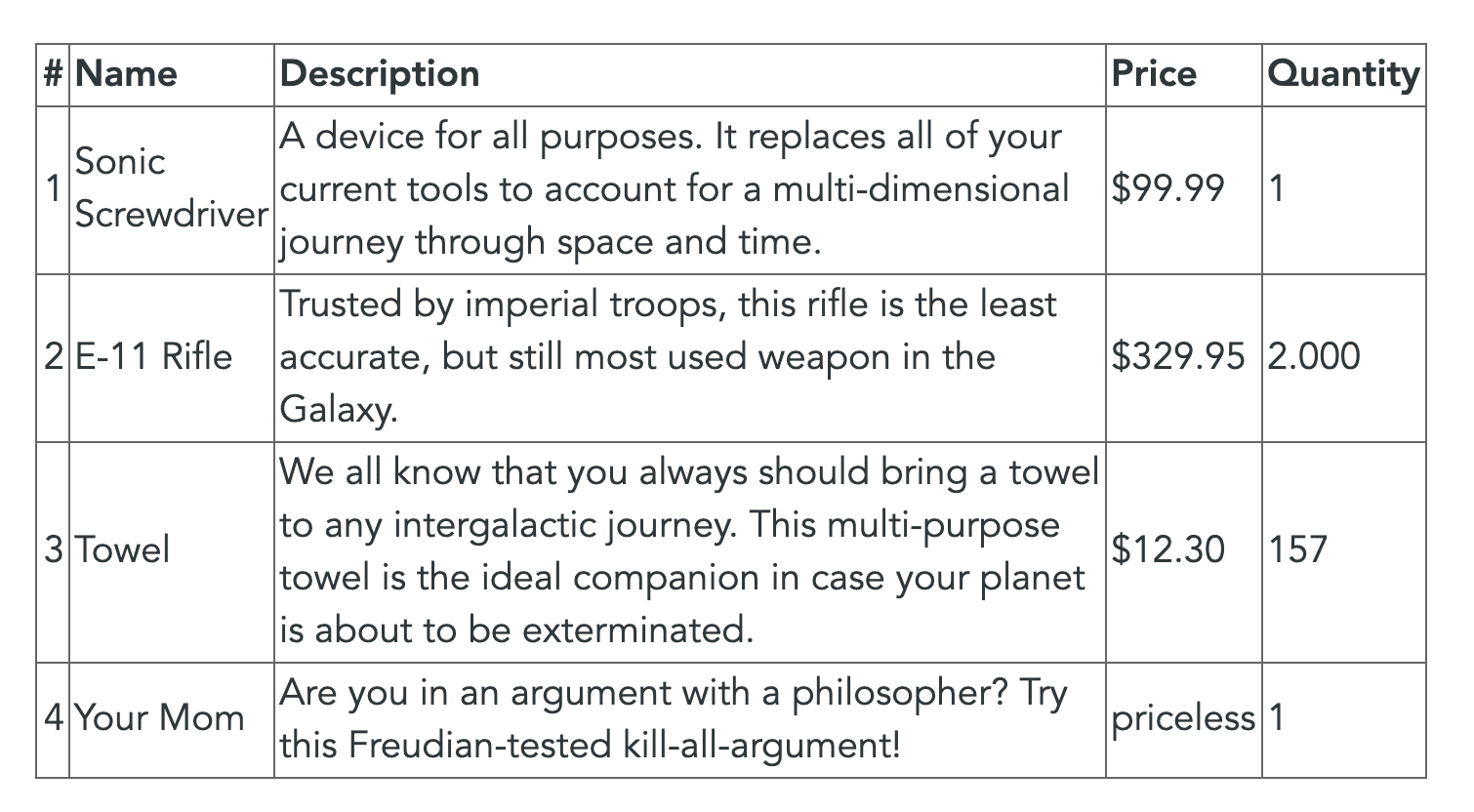
Zettlr’s table editor will detect Markdown pipe tables in your document and render them as actual tables that support line wrapping and contain less cluttered borders.
With the table editor, the above-mentioned table looks like this:
Note
Due to the complexity of grid tables, and especially the ability to produce very complex layouts, the table editor only supports pipe tables.
Editing Tables
To edit tables with the table editor, click into any of the cells of the table and begin writing. Regular Markdown syntax is supported.
Whenever a cell is currently active, you will see the Markdown source of the cell. Every cell that is not active will be rendered as HTML to make the display less cluttered.
Keyboard Navigation
While editing a table, the following keyboard shortcuts are available:
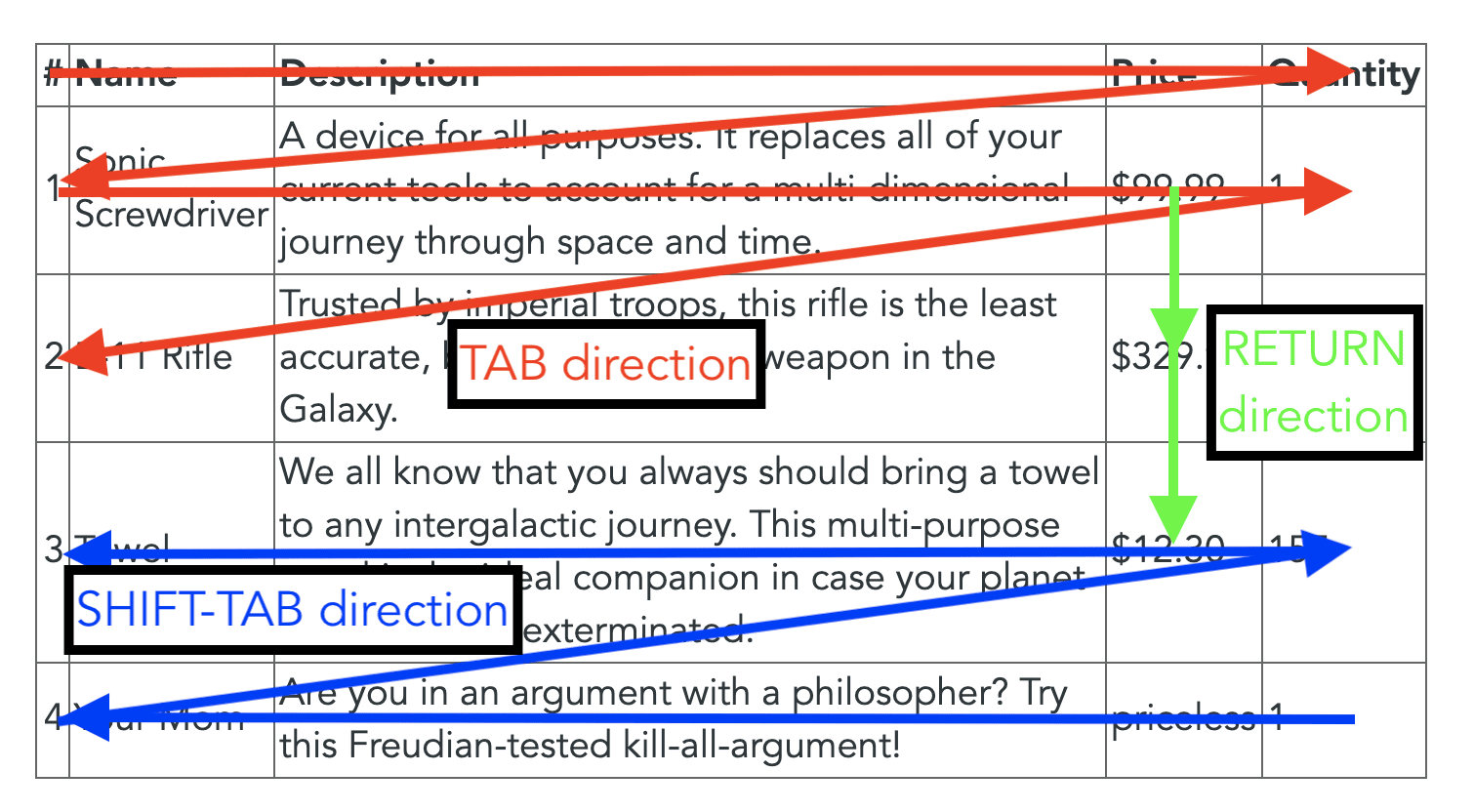
- Tab: Move to the next cell. If the last column is active, move to the first cell in the next row. If your cursor was in the last column of the last row, a new row will be added automatically.
- Shift+Tab: Move to the previous cell. If your cursor was in the first column, move to the last cell in the previous column.
- Return: Move to the same column in the next row.
- Shift+Enter: Move to the same column in the previous row.
- Arrow Up/Arrow Down: Move to the same column in the previous/next row. No new rows will be added if you are in the first or last row.
- Arrow Left/Arrow Right: Move the cursor left/right. If the cursor is at the beginning/end of the cell's contents, move to the previous/next cell.
With these shortcuts, you can easily enter content into your tables using natural movements. You would first want to fill out the table header and afterwards you want to add one set of data per line. Therefore, Tab is your friend here:
Adding Rows and Columns
The table editor also features a set of buttons at the edge of the table. These allow you to add a new row or column at the specified location.
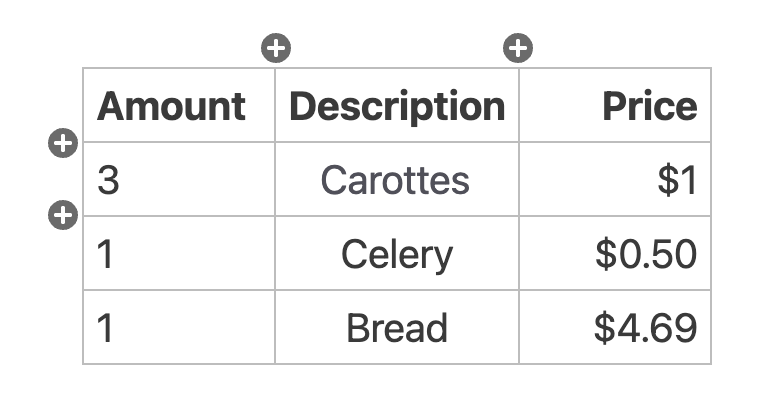
These buttons will always appear at the edge of the currently active cell. Click into any cell in the row or column to which you wish to add a new row or column to move these buttons there.
Removing Rows and Columns
To remove a row or column, simply right-click any cell in the row or column that you want to remove. Then, select the correct context-menu item.
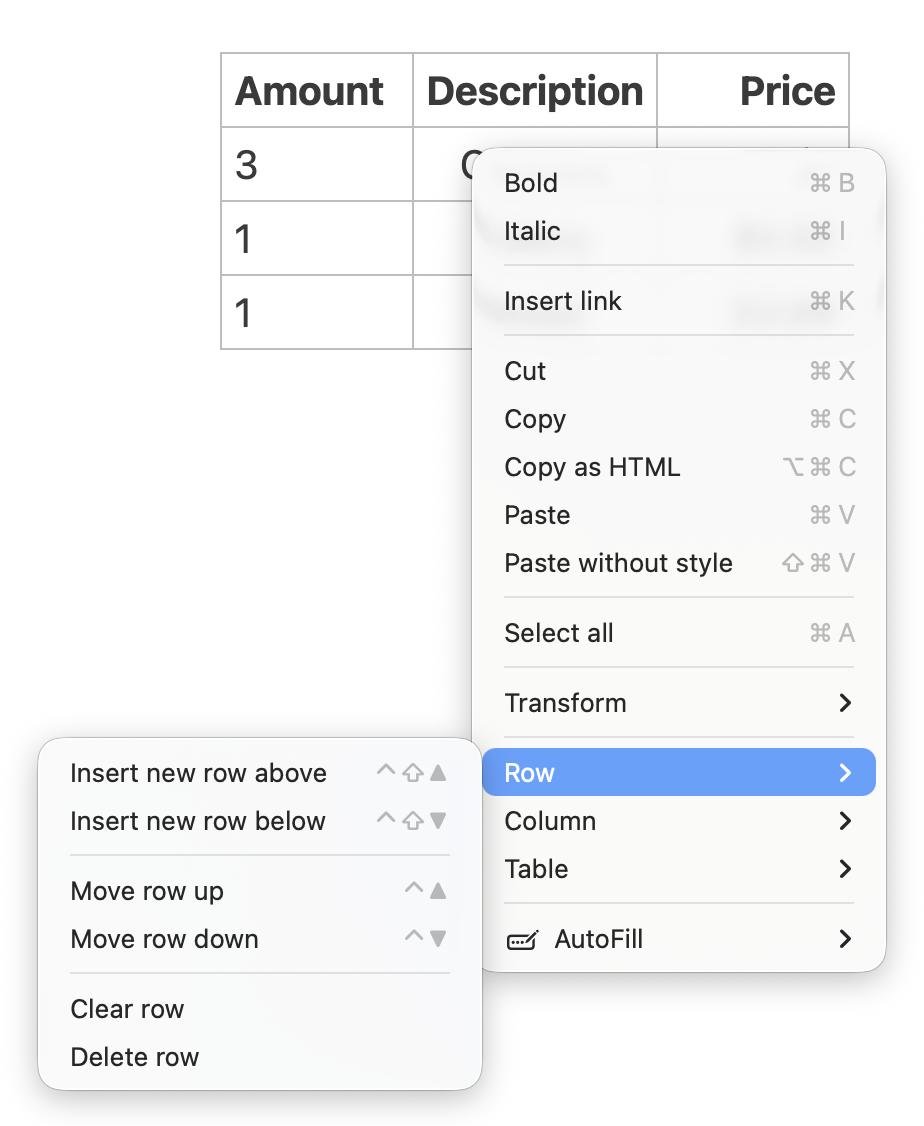
Through this context menu, you can add or remove rows and columns, swap rows and columns, or clear them out (remove their contents). You can also clear out or delete the entire table.
Keyboard Shortcuts
You have several keyboard shortcuts available that will make working with tables easier and allow you to avoid opening the context menu in several instances.
Tip
Many of these shortcuts can be customized to suit your preferences.
| Keyboard Shortcut | Function |
|---|---|
| Tab | Move to the next cell (Shift for previous cell) |
| Enter | Move to the next row (Shift for previous row) |
| Alt+Shift+ArrowUp (macOS: Ctrl+Shift+ArrowUp) | Add a row before the current one |
| Alt+ArrowUp (macOS: Ctrl+ArrowUp) | Swap the current row with the previous one |
| Alt+Shift+ArrowDown (macOS: Ctrl+Shift+ArrowDown) | Add a row after the current one |
| Alt+ArrowDown (macOS: Ctrl+ArrowDown) | Swap the current row with the next one |
| Alt+Shift+ArrowRight (macOS: Ctrl+Shift+ArrowRight) | Add a new column to the right of the current one |
| Alt+ArrowRight (macOS: Ctrl+ArrowRight) | Swap the current column with the next one |
| Alt+Shift+ArrowLeft (macOS: Ctrl+Shift+ArrowLeft) | Add a new column to the left of the current one |
| Alt+ArrowLeft (macOS: Ctrl+ArrowLeft) | Swap the current column with the previous one |
| Shift+Cmd/Ctrl+K | Delete the current column |
| Cmd/Ctrl+Backspace | Clears out the current column (i.e., inserts whitespace) |
| Shift+Cmd/Ctrl+Backspace | Clears out the current row (i.e., inserts whitespace) |
| Alt+Shift+Cmd/Ctrl+Backspace | Clears out the entire table |
| Ctrl+C | Aligns the current column center |
| Ctrl+L | Aligns the current column left |
| Ctrl+R | Aligns the current column right |
| Cmd/Ctrl+Shift+A | Aligns the table at the main selection head (not left/right/center, but adds the appropriate padding so that it is formatted nicely. Requires a monospaced font for proper visuals.) |
Complex tables
Sometimes, you will find the need to insert more complex tables with cells spanning multiple columns and/or rows. In this case, the table editor is not available.
You can use grid tables. Zettlr supports syntax highlighting of these, even though the table editor cannot handle them. Some keyboard shortcuts will still work, even in grid tables.
If grid tables are insufficient, you can also insert tables using HTML or LaTeX, depending on where you wish to export the document to.
What you can do in this case is to include such tables as raw LaTeX or HTML source code. There are great tools out there to transform your RDataset or STATA datafile into LaTeX or HTML and include complex regression tables via raw markup syntax.
To include such a file in a larger research project, you can make use of Zettlr's project feature.