
Importing Word- and other Documents into Zettlr
Most new users of Zettlr have primarily used Word, LibreOffice, or some other word processor to do their writing. However, Zettlr cannot directly open Word or OpenDocument files. But what it can do is import them. Here we explain how to do that.
First, click “File” → “Import Files.” This will open a dialog that allows you to select the import destination. Select the folder into which you want to import your files. Confirm your selection.
Now, another dialog will open that allows you to select which files you wish to import. Navigate to the folder where your Word documents or other files are located, and select all you want to import.
Repeat this process for every destination and set of files to import.
Supported File Types
Zettlr utilizes Pandoc to import files, and therefore we can support a wide variety of different files. The main requirement for importing a file is that Pandoc supports the file format, and that it can be converted into a Markdown file.
Note
It may be that your computer does not show file extensions. You can adjust the settings of your computer's file browser (such as Explorer or Finder) to view all file extensions.
Zettlr will look at the file extension to determine the type of document and select the appropriate import workflow. Here is the list of file type extensions currently supported:
| File extensions | Description |
|---|---|
*.md, *.markdown | Markdown documents |
*.rmd | RMarkdown files |
*.mdx | Markdown files with JSX |
*.docx, *.doc | Microsoft Word Documents |
*.odt | OpenDocument files |
*.rtf | Rich-Text Format documents |
*.html, *.htm | HTML documents |
*.tex, *.latex | LaTeX documents |
*.epub, *.fb2 | E-book files |
*.wiki | Various Wiki-formats (MediaWiki, etc.) |
*.org | ORGmode documents |
*.rst | reStructuredText documents |
*.docbook | DocBook files |
*.textile | Textile documents |
*.t2t | txt2tags documents |
*.muse | Muse documents |
*.opml | OPML outline documents |
*.haddock, *.hs | Haskell source code documentation |
*.roff, *.ms | Various "man pages" formats |
*.csv | Comma-Separated lists |
*.ipynb | Jupyter Notebook documents |
*.jira | Jira issues |
Tip
Zettlr can actually import even more file formats than the ones listed. However, to keep the app more focused, it only ships with commonly found file formats, and not all of them. To allow Zettlr to import even more file formats, see the section on creating profiles ("defaults files").
Customizing How Zettlr Imports Files
By default, Zettlr will apply sensible defaults to your imported files. However, it might be that you wish to customize how it imports files. To do so, you can adapt the import profiles. You can do so in the assets manager (“Zettlr” → “Assets Manager” on macOS, “File” → “Settings” → “Assets Manager” on Windows and Linux).
The assets manager has a section for file imports. The list to the left shows you all currently available import profiles. If you select one, you can edit the settings Zettlr uses for it using the YAML editor on the right. You can also create entirely new profiles if you have files that are not supported by Zettlr out of the box.
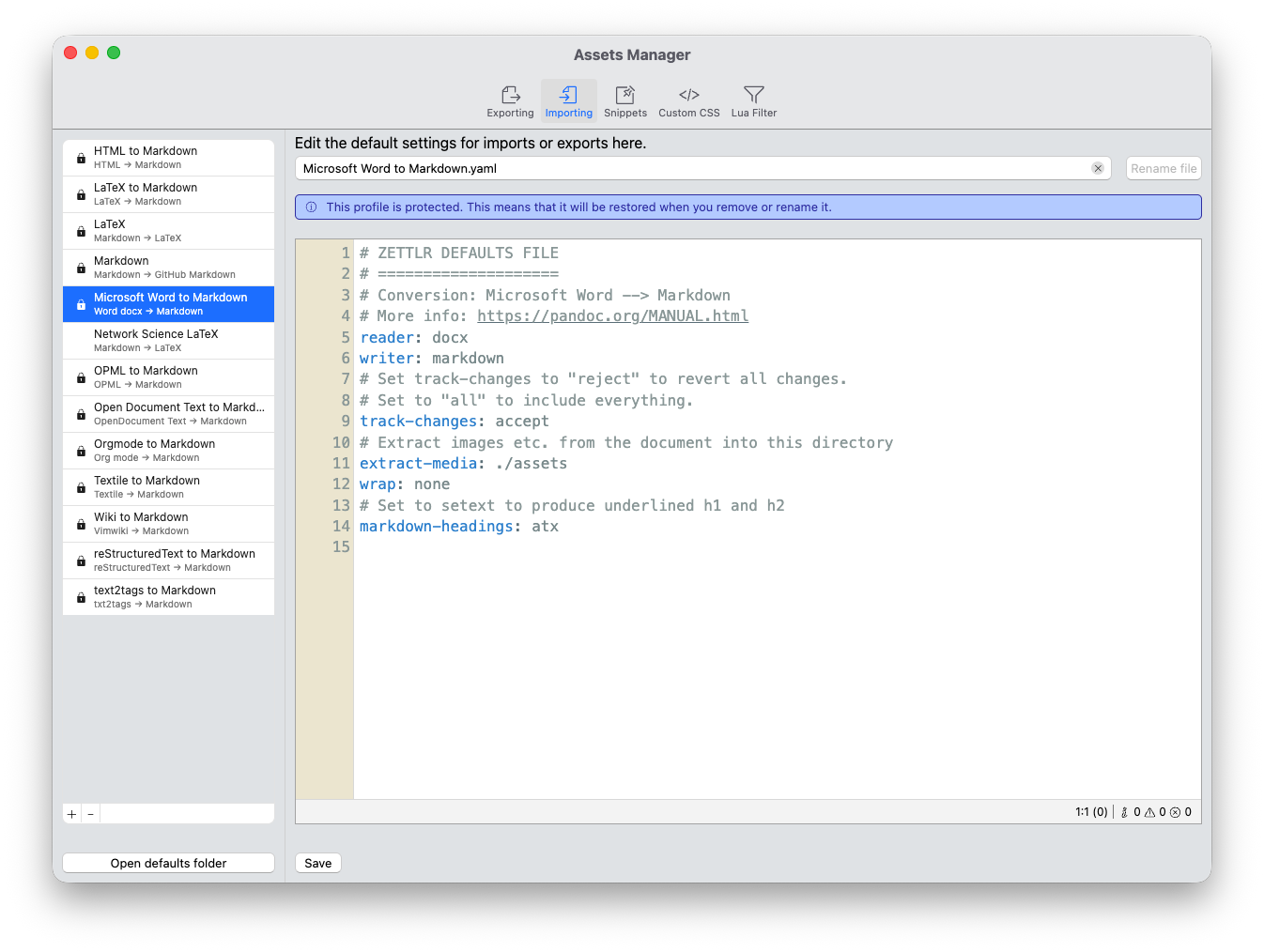
Please see the corresponding documentation page for defaults files to learn how to adjust imports.
Working with Co-Workers
The same process also works if you work with colleagues who work exclusively with Word: For them, you can export Markdown files to docx and have them, e.g., comment on your files. After they send you back your file, you can re-import it again to Zettlr.
You can finetune how the importer works by modifying its profile. For example, by default Zettlr will direct Pandoc to extract images and other media files from Word documents into an asset directory so that you get to keep those media files. You can also adjust whether any comments your coworkers have made should be accepted, rejected, or kept as comments.