
Zettlr LogoZettlr Documentation
Setup
Troubleshooting
FAQ
  • About Zettlr
  • Download Zettlr
  • GitHub
  • English
  • Español
  • Deutsch
  • Français
  • Italiano
  • 日本語
  • Português
  • Русский
Setup
Troubleshooting
FAQ
  • About Zettlr
  • Download Zettlr
  • GitHub
  • English
  • Español
  • Deutsch
  • Français
  • Italiano
  • 日本語
  • Português
  • Русский
  • Welcome
  • Getting started

    • Setup
    • Migrating from Obsidian
    • Migrating to a New Computer
    • Installing LaTeX
    • A Note on Security
    • Get involved
    • Troubleshooting
  • First Time Users

    • First Steps
    • Workspaces
    • Creating Files and Folders
    • Writing Markdown
    • Importing Word- and other Documents into Zettlr
    • Exporting Files
  • Interface

    • File Manager
      • Workspaces and Root Files
      • Choosing Which Files To Display
      • File Manager Appearance (Modes)
      • The File List
      • Properties
      • Filtering
      • Global Search
      • Projects
    • Split View
      • Document Tab Bar
      • Markdown Editor
      • Code Editor
      • Image Viewer
      • PDF Viewer
    • Sidebar
      • Table of Contents
      • References
      • Related Files
      • Other Files
  • Writing

    • Markdown Editor
      • Markdown Compendium
      • Appearance
      • Search
      • Autocomplete
      • Footnotes
      • Citations
      • Working With Comments
      • Status Bar
      • Table Editor
      • Text Transforms
      • Snippets
      • YAML Front Matter
    • Language & Style
      • Spellchecking
      • LanguageTool
      • Markdown Syntax
      • Autocorrect and Magic Quotes
      • Readability
    • Scientific & Technical
      • Math
      • Code Blocks
      • Mermaid Diagrams
      • Pomodoro Timer
      • Writing Statistics
    • Exporting
      • Exporting Workflow
      • Defaults Files (Profiles)
      • Selecting the PDF Engine
      • Assets Manager
      • Custom Templates and Reference Documents
      • Custom Commands
      • Printing and Previewing
      • Lua Filters
    • PKMS & Zettelkasten
      • The Zettelkasten method
      • Graph View
      • Tag Manager
  • Guides
    • Custom CSS
    • Reference Manager Integration
    • Setting up LanguageTool locally
    • Presentations
    • Submitting to a Journal using a LaTeX Template
    • Zettlr as a Portable App
  • Reference
    • Keyboard Shortcuts
    • Settings
    • Frequently Asked Questions

Pomodoro Timer

Pomodoro Timer

If you write a lot, you likely have experienced writing fatigue due to excessive long hours of working. To combat this, Francesco Cirillo devised a technique called the Pomodoro technique which breaks down long sessions into intervals (with breaks). This allows the brain to refresh itself and helps avoids burn-out. It works as follows:

  1. Work (typically 25 minutes)
  2. Short break (typically 5–10 minutes)
  3. Repeat (3 times)
  4. Long break (typically 25–30 minutes)
  5. Repeat from Step 1

Zettlr simplifies this process with a built-in Pomodoro timer.

Using the Pomodoro timer

Access the Pomodoro timer by clicking on the circle in the top right corner of the screen, inside the Toolbar. The Pomodoro timer, has 3 core settings that can be adjusted:

  • The length of the Work, Short Break and Break duration's can be adjusted by entering the time (in minutes) in their respective text boxes.
  • After each phase, a Sound Effect is played, which can be chosen using the drop-down menu (either Glass, Digital Alarm and Chime).
  • Adjust the volume with the slider (left means muted). When you change this, the selected sound will play to indicate the volume.

Note

This is not your system volume, so if your system's volume is only at 20 percent, even a volume of 100 percent inside Zettlr will only sound as loud as 20 percent.
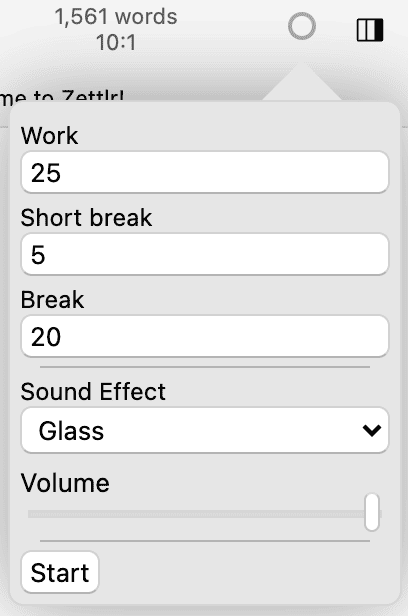
Initial display of the Pomodoro timer

Click on Start to begin the timer. Then, the circle will be filled with the color of the current phase (either red, yellow, or green). Once it is full, the next phase will begin.

To Stop the timer or simply review the current status of the timer, click the circle. A small popup shows the remaining amount of time for the current phase, the type of the current phase and will give the option to stop session.
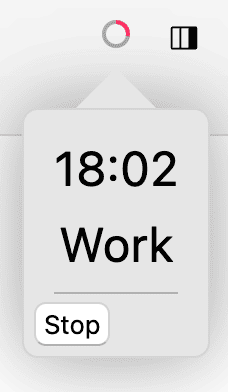
Pomodoro Timer running

Edit on GitHub
Last update: 8/2/26, 11:10 AM
Contributors: Hendrik Erz, Eren Inan Canpolat, Break6700
Prev
Mermaid Diagrams
Next
Writing Statistics
© 2017-2026 by Zettlr and Contributors